
Back up your setup, use the software for your exact model, and change one layer at a time.
There are three different things to maintain
Firmware is the scanner’s operating software. A radio database describes systems and channels. Your personal configuration selects what you want to monitor and how it is organised. Treating those as separate layers makes both maintenance and troubleshooting easier. Updating one does not necessarily update the other two.
Before making changes, write down the model, installed firmware, software used and the configuration you currently like. Save a backup using the model’s documented method. The purpose is to make the next session reversible, not to accumulate files with indistinguishable names.
Choose the correct software family
Uniden’s support information distinguishes the Sentinel route for its SDS/x36HP family from the HomePatrol software route. Whistler similarly lists separate EZ Scan downloads for individual TRX models. A familiar application name does not establish that an arbitrary installer suits your radio.
Use the manufacturer’s current download page and check operating-system requirements before buying. If your only computer uses an unsupported operating system, decide how updates will be handled in practice. A scanner that is convenient to use once programmed may still create an awkward maintenance job in your household.
Set up a small, useful first configuration
Start with one listening goal and a small set of confirmed channels or talkgroups. Use names that make sense to you, and keep related targets together. A huge imported list can make it hard to understand what is happening when the radio pauses or seems quiet.
On a database-driven model, location selection is a starting point. Review which service types and lists are enabled rather than assuming every desired target is automatically active. When a channel works, preserve that known-good setup before expanding the list.
Update deliberately and verify the result
Follow the exact model’s official update instructions, including the required USB mode and power conditions. Uniden publishes a BCD436HP setup sequence covering database and firmware updates; its firmware notes also specify the supported update method. Those are model-specific instructions, not a universal sequence for all scanners.
After a change, test the same known target used before the update. If something is missing, inspect the configuration first and compare it with your backup. Avoid changing the antenna, software, firmware and location all together, because you will lose the ability to tell which change mattered.
Treat an empty scan as a diagnosis, not a shopping trigger
Uniden’s common-questions page documents cases where no channels are programmed or selected, and cases where favorites need attention after system information changes. Those possibilities are worth checking before concluding that the hardware is defective.
Keep a brief maintenance note: what changed, why, and whether the known target still worked. You do not need a complicated log. A few dated lines can prevent repeated troubleshooting and make it easier to ask for useful support. Buy a programming service only when you understand what it includes and how you will update the setup later.
Put it into practice
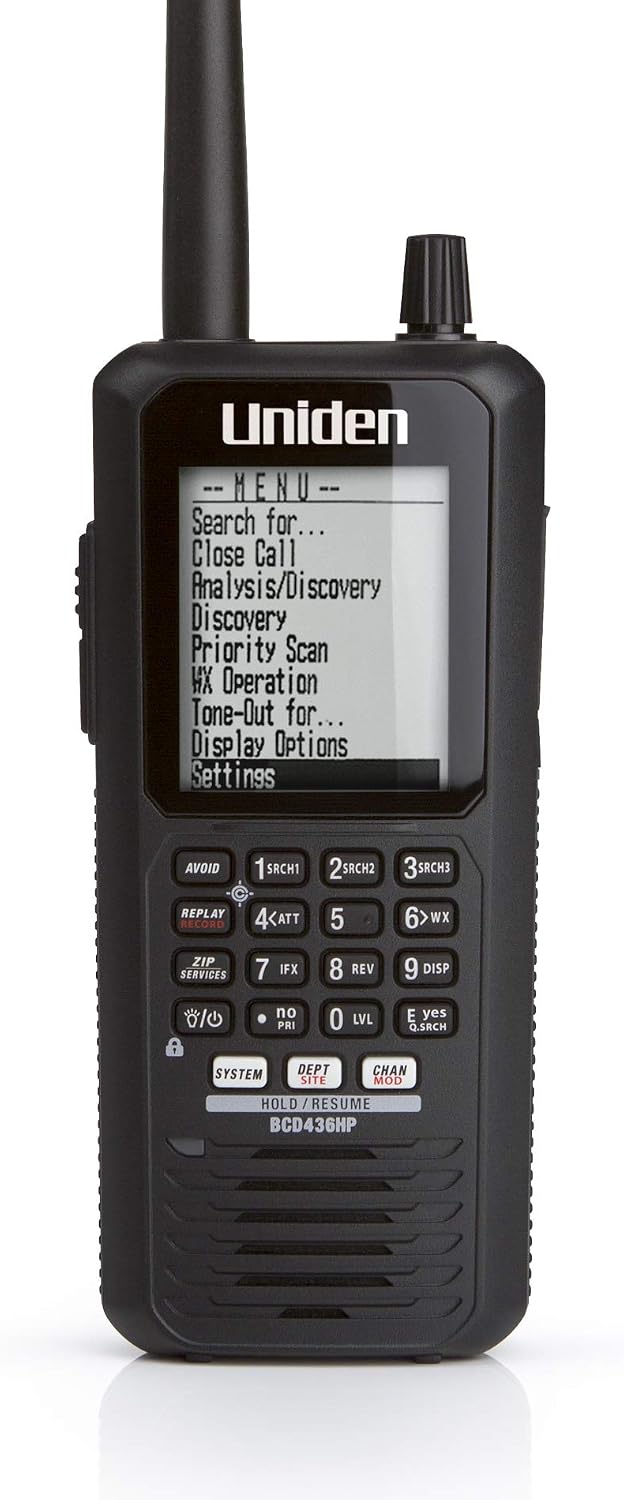
Listeners who want portable P25 trunking and a database-oriented workflow
No integrated GPS receiver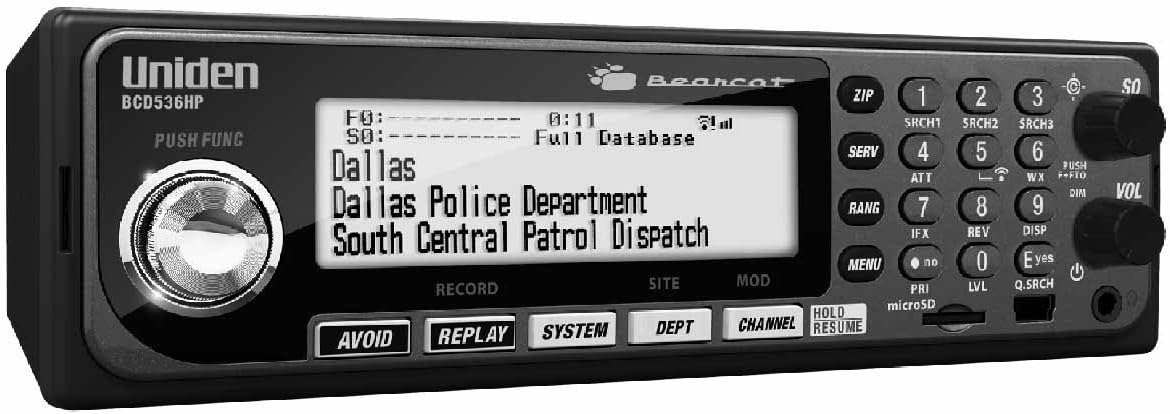
A desk or vehicle installation where database programming matters
Wi-Fi features require their own setup and compatibility checks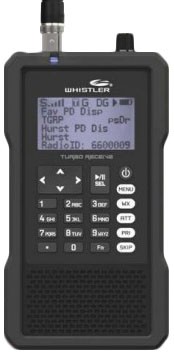

Listeners who want a Whistler handheld covering supported P25, DMR and NXDN traffic
System-specific behaviour still needs verificationSources & further reading
- Uniden common scanner questions ↗Checked 2026-11-06
- Uniden BCD436HP setup and software ↗Checked 2026-11-06
- Uniden BCD436HP software downloads ↗Checked 2026-11-06
- Uniden BCD436HP firmware release notes ↗Checked 2026-11-06
- Whistler scanner FAQ ↗Checked 2026-11-06
- Whistler US scanner software downloads ↗Checked 2026-11-06